You must edit your photos to the absolute best of your abilities before uploading them to 123D Catch. If you don't your model isn't going to go together well or possibly at all.
That is why I taught you to edit the images before uploading them.
Pay particular attention that you shadows have detail. If there isn't any detail in the shadows, then 123D Catch can't find shared points to match up the images.
Sunday, January 27, 2013


Tuesday, January 22, 2013
What's due on Tuesday the 22nd
You should have a successful model in 123D Catch. You should have it cleaned up as much as possible in there.
Save the Mesh Package.
Many of you will be further along and have your model cleaned up in PS. Great!
We will cover the next steps in class.
Save the Mesh Package.
Many of you will be further along and have your model cleaned up in PS. Great!
We will cover the next steps in class.
Wednesday, January 16, 2013
3D painting and editing of textures in PS6
Fantastic article about using the 3D features of Photoshop.
Getting started with Photoshop 3D Great video about painting textures in PS. How to clean up/improve the texture of imported models.
Getting started with Photoshop 3D Great video about painting textures in PS. How to clean up/improve the texture of imported models.
Tuesday, January 15, 2013
Thursday, January 10, 2013
Paper Photo Sculpture information
Project 1: Photo Sculpture
Pepakura Settings:
I will be printing to a 17" printer using a 16" roll of paper. I have found that 16x16" pieces of paper are manageable. Additionally, it makes the math easy. Pepakura using mm throughout, so you will have to convert to inches if necessary. 16" = 406.4mm. Pepakura doesn't accept fraction numbers, so I just use 406mm.
Change line-weight to 1.
Change both side margins to 5mm
Set bitmap resolution to Very High
Under the 3D menu, turn on Page numbers and Edge ID
Under Settings > Other Settings > you can change the size of the edge id numbers. By selecting the Place edge ID inside of face, it will place the numbers outside of the image part of your piece. Hopefully, the line up on the tabs. No guarantees though.


Krista Hoefle makes full scale figures from paper. She used Pepakura for some of her work. Here other work is pretty cool as well.
Collection of nice papercraft
Singapore University project in which they upcycle materials into 3D models
WebUrbanist collection of nice papercraft
Eric Testroete has a neat paper head
This photogallery reveals his process
Papercraft Museum - self explanatory, also has some good information there
Forum Thread about a guy making a full scale paper outfit
Osang Gwon's photo sculptures
Pepakura
A guy's tutorial on creating a large head
Erik's Models has some good resources to get starting making your own paper models
Blog dedicated to Papercraft using Pepakura. He offers lots of free model files.
Bert Simons papersculpture
Nice collection of images of Bert Simons paper sculptures.
How to reduce the poly count using Blender
I suggest that you use the built in tools within the installed PC version of the application to clean up your mesh as much as possible before downloading it to clean up more on another program. The only exception to this may be the cutting of excess materials near the edge.
Great video demonstrating how to clean up a 123D Catch model using Blender
Below, you will see how turning on the Shadeless option allows you to fully see all the textures in the model.
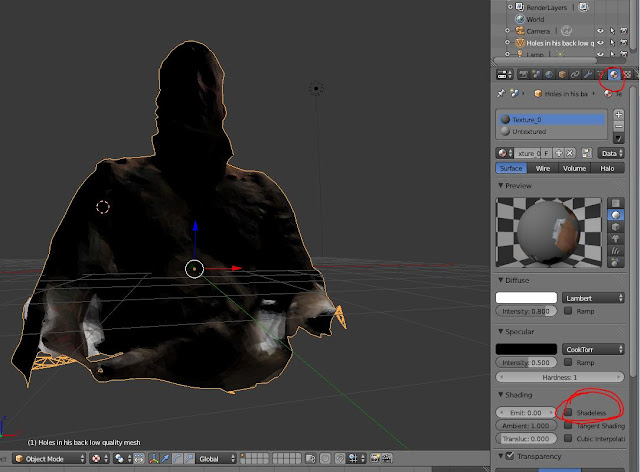

Best video on how to reduce your poly count in Blender! Only 23 minutes long!! He is actually reducing the polys from a 123D Catch just has you have done.
Kind of a complicated way to reduce the poly count in Blender
Example video of reduced 123D model using Blender
3d Photo references and downloadable textures
Review of Looxis Faceworx as well as a link to download the program
How to use Looxis Faceworx
Watch this video on Pepakura Unfolding - you may want to watch Part II of this series as well
Nice video which serves to introduce you to Pepakura:
Texture model from photographs
Great video showing how it's done using ZBrush
Similar video
Pepakura Settings:
I will be printing to a 17" printer using a 16" roll of paper. I have found that 16x16" pieces of paper are manageable. Additionally, it makes the math easy. Pepakura using mm throughout, so you will have to convert to inches if necessary. 16" = 406.4mm. Pepakura doesn't accept fraction numbers, so I just use 406mm.
Change line-weight to 1.
Change both side margins to 5mm
Set bitmap resolution to Very High
Under the 3D menu, turn on Page numbers and Edge ID
Under Settings > Other Settings > you can change the size of the edge id numbers. By selecting the Place edge ID inside of face, it will place the numbers outside of the image part of your piece. Hopefully, the line up on the tabs. No guarantees though.


Krista Hoefle makes full scale figures from paper. She used Pepakura for some of her work. Here other work is pretty cool as well.
Collection of nice papercraft
Singapore University project in which they upcycle materials into 3D models
WebUrbanist collection of nice papercraft
Eric Testroete has a neat paper head
This photogallery reveals his process
Papercraft Museum - self explanatory, also has some good information there
Forum Thread about a guy making a full scale paper outfit
Osang Gwon's photo sculptures
Pepakura
A guy's tutorial on creating a large head
Erik's Models has some good resources to get starting making your own paper models
Blog dedicated to Papercraft using Pepakura. He offers lots of free model files.
Bert Simons papersculpture
Nice collection of images of Bert Simons paper sculptures.
How to reduce the poly count using Blender
I suggest that you use the built in tools within the installed PC version of the application to clean up your mesh as much as possible before downloading it to clean up more on another program. The only exception to this may be the cutting of excess materials near the edge.
Great video demonstrating how to clean up a 123D Catch model using Blender
Below, you will see how turning on the Shadeless option allows you to fully see all the textures in the model.


Best video on how to reduce your poly count in Blender! Only 23 minutes long!! He is actually reducing the polys from a 123D Catch just has you have done.
Kind of a complicated way to reduce the poly count in Blender
Example video of reduced 123D model using Blender
3d Photo references and downloadable textures
Review of Looxis Faceworx as well as a link to download the program
How to use Looxis Faceworx
Watch this video on Pepakura Unfolding - you may want to watch Part II of this series as well
Nice video which serves to introduce you to Pepakura:
Texture model from photographs
Great video showing how it's done using ZBrush
Similar video
Tuesday, January 8, 2013
Welcome to class!
This blog will serve as a resource to you throughout the semester. The syllabus, assignments, and numerous other materials will be posted here. I will post course re-caps here from time to time.
It is but one of the numerous online resources that you will be utilizing throughout the course. The photo sharing site Flickr is another such resource. Below, you will find a video describing how Flickr was used in a similar fashion elsewhere.
It is but one of the numerous online resources that you will be utilizing throughout the course. The photo sharing site Flickr is another such resource. Below, you will find a video describing how Flickr was used in a similar fashion elsewhere.
Subscribe to:
Posts (Atom)